Campaign Management Agentic Solution
Campaign Management Agentic Solution is a powerful, GPT-enabled application designed to help campaign managers create and run conversational survey or interview campaigns. Users can define campaigns manually using simple text scripts or create them dynamically through a guided conversation. It supports multichannel deployment, allowing you to engage your audience through SMS (Twilio), Web (Direct Line), and Voice (Audiocodes).
This solution simplifies campaign execution through automation and provides a central interface for managing contacts, audiences, content and campaign performance. It features intelligent LLM agents that conduct personalized survey flows, summarize responses, and log results in the backend—regardless of the user’s language.
Whether you're running customer interviews, internal feedback surveys, or outreach campaigns, this solution gives you the tools to manage every step efficiently and at scale.
What’s New in Version 3.1
- Conversational Campaign Editing Agent: A new intelligent agent now allows users to edit existing campaigns conversationally. You can update all campaign details directly through natural interaction — including changing the campaign name, description, dates, and type; modifying or creating a new audience to replace the existing one; and creating or modifying the campaign channel. You can trigger this agent from the campaign form by clicking the Edit Campaign Configuration button next to the Generate Campaign Content button.

What’s New in Version 3.0
- Conversational Campaign Creation: A new guided flow lets you create entire campaigns dynamically. An agent helps you define the campaign, set the audience (or create one using filters), set dates/descriptions, and select channels. This can be started conversationally by asking the bot directly, or by clicking on the Create a New Campaign button from the Campaign & Contacts workspace > Campaign view.
- Conversational Content Agent: A new, dedicated agent automatically takes over to help you craft the campaign message, including rich formatting, pictures, and dynamic buttons. This can be triggered for any campaign by clicking on Automations and selecting Edit/Create Campaign content while viewing the campaign that you want to work on.
- New Channel Support (Audiocodes): Added support for the Voice (Audiocodes) channel, in addition to the existing Web (Direct Line) and SMS (Twilio) channels.
- Dynamic Audience Creation: Build audiences on the fly using filters (e.g., "GPA over 3.5" or "Enrollment city is Bucharest") during the conversational setup.


What’s New in Version 2.0
- New SMS (Twilio) channel support – Campaigns can now run over SMS in addition to the existing Web (Direct Line) channel.
- Two dedicated GPT agents – One for Web and one for SMS, each running customized conversational flows.
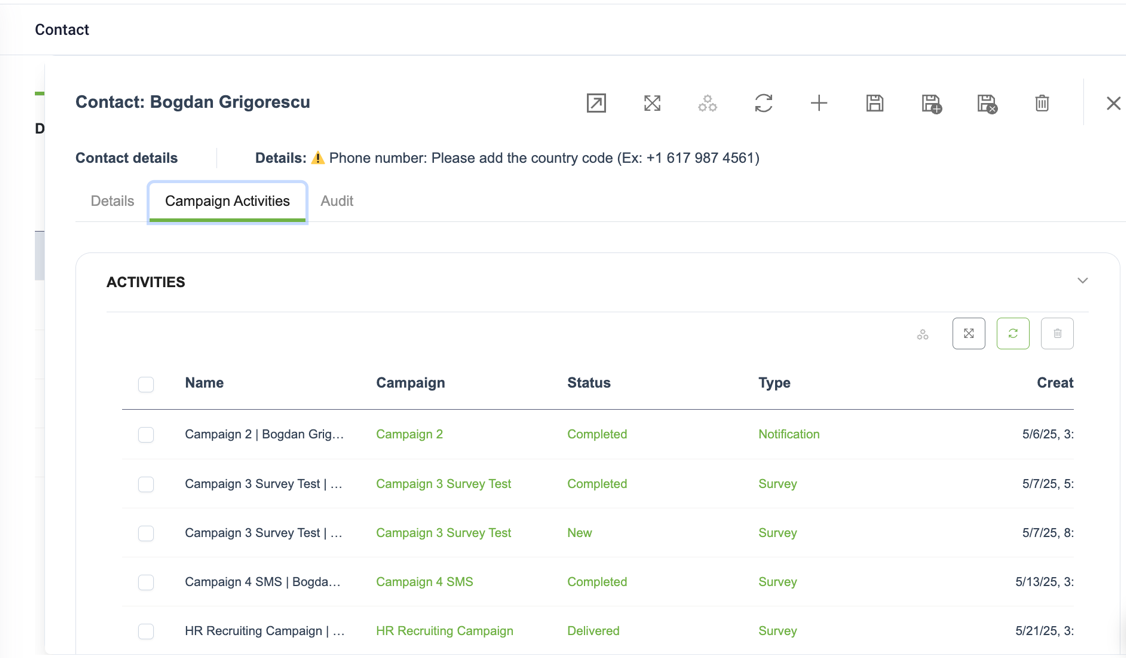
- Redesigned contact management – Includes a full 360° view of each contact.
- Campaign analytics and reporting – Track performance and export detailed reports for each campaign.
- Enhanced automation flows – New workflows for sending messages, updating activity status, and managing campaign data.
- Updated data model – Backend entities now include enriched fields for better segmentation and tracking.
Key Components
The key components of this solution include:
- Backend Management - Define and manage Contacts, Audiences, and Campaigns and analyse the performance of each Campaign. It also offers a 360-view of each Contact.
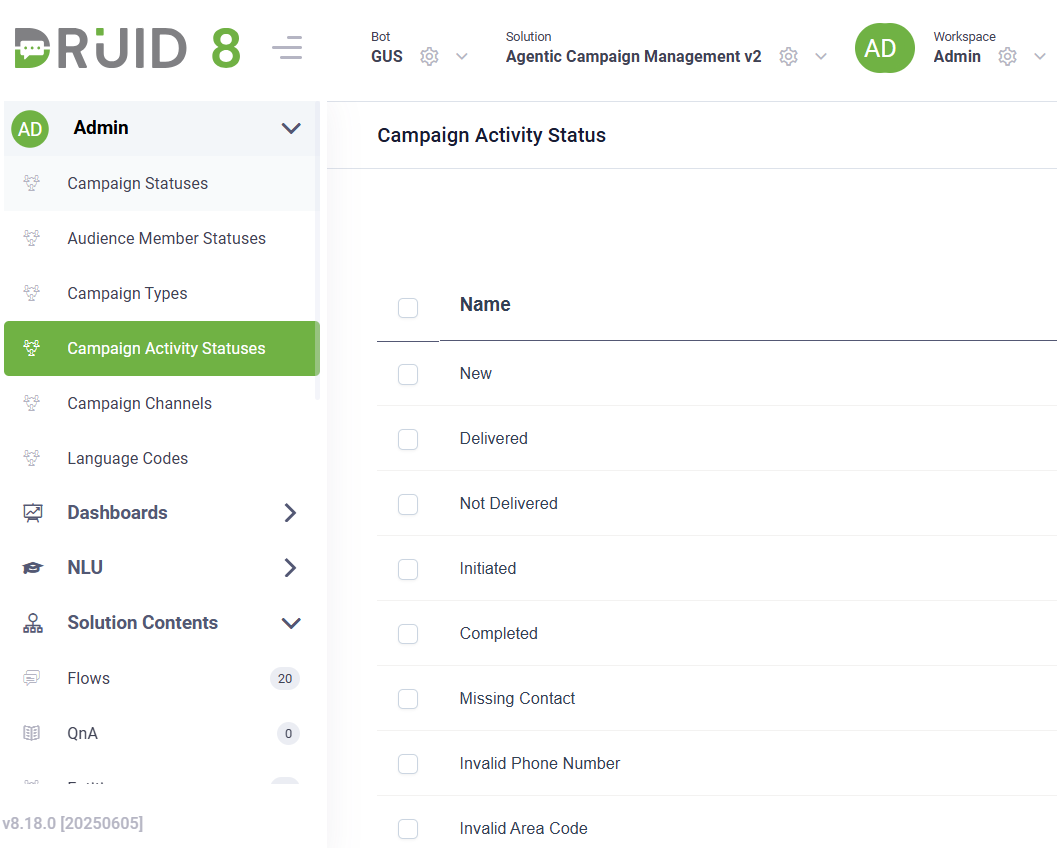
- Preloaded Sample Data - Preloaded sample data for Backend tables (Channels, Languages, Statuses, etc) and an automated setup flow that provisions these tables.
- Campaign Automation Flows – Various automations for creating, sending and updating the status of campaign activities and for exporting a detailed report of each campaign.
- Main GPT Agent - A set of agents that handle both the conversational creation of campaigns (guiding the user through setup, audience filtering, and content creation) and the execution of survey flows. They save structured output in the Campaign Management Backend, operate in any language, and follow user responses to the survey script.
Future updates will support additional channels, including WhatsApp.
Prerequisites
- Tenant Druid community (open new tenant here) or Druid subscription.
- You should have a Druid bot. For information on how to create a bot, see Creating Druid Bots.
- The Twilio SMS channel configured for your bot. For setup instructions, see Twilio SMS.
- The Audiocodes channel configured for your bot. For setup instructions, see Voice AudioCodes Channel.
- A dedicated web page that hosts the WebChat snippet for the Direct Line channel.
Configuring the Skill Template
To configure the skill template, follow these steps:
Step 1. Install the solution from the Solutions Library
Go to the Solutions Library, search for solution Campaign Management Agentic Solution and import it following the instructions provided in section Installing Solution Templates.
Wait until the import status shows as “Success”.
Step 2. Set up the bot special flows
Go to the bot settings, Details page and click the Dialog management section header. The section expands. Select the following special flows:
|
Special Flow |
Select |
|---|---|
|
Welcome flow |
check-initial-setup |
|
Intent not found flow |
System_Intent not recognized |
| Intent rephrase flow | intent-rephrase |
Scroll down and click Save & Close.
Step 3. Configure the app connection
Go to solution Apps and configure the following connections with your credentials:
| App | Description | Setup required |
|---|---|---|
| Audiocodes |
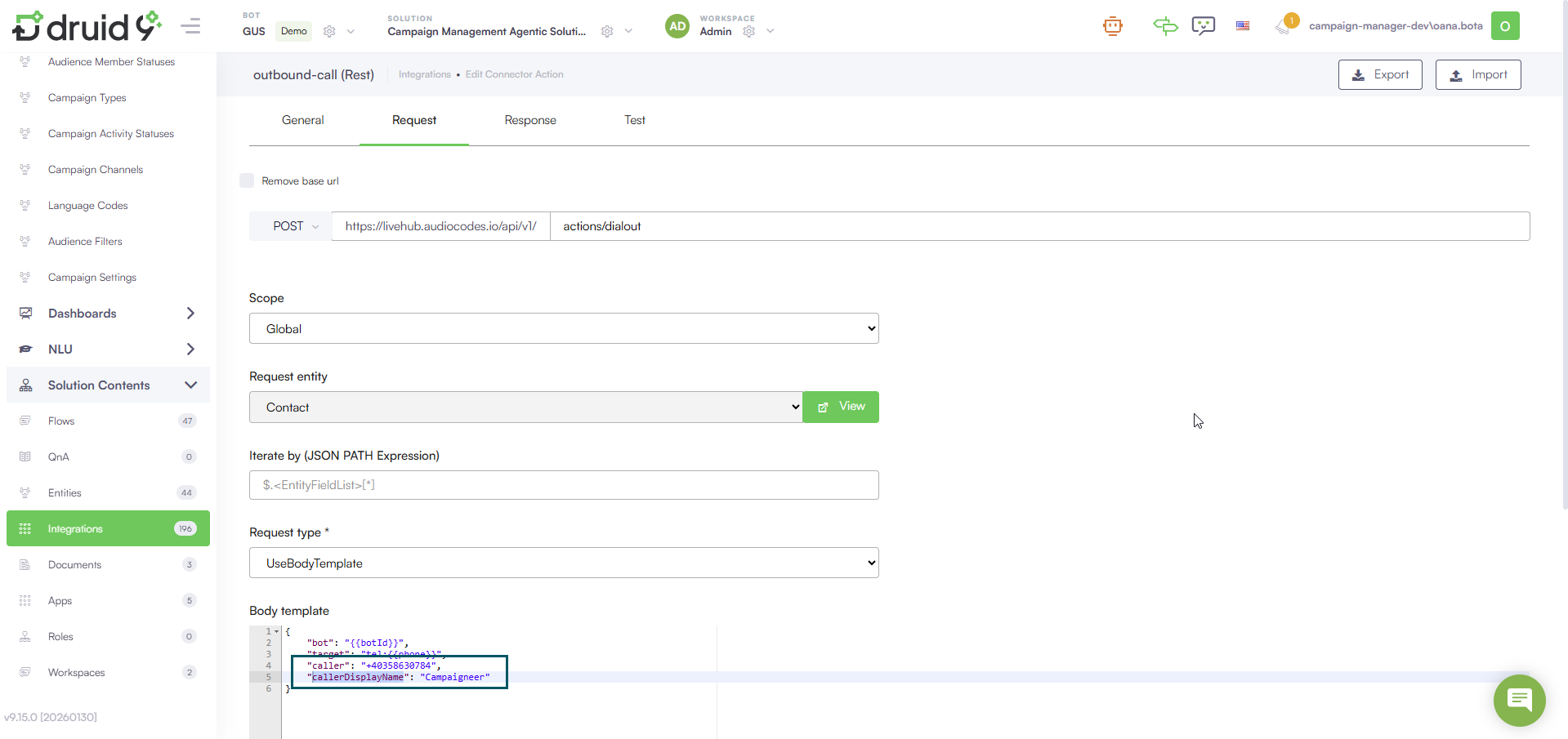
Used for outbound voice calls. Enter your Audiocodes token as key value in the Variables table. You must also configure the request body for the REST integration used for AudioCodes integration:
|
Mandatory for the Voice channel |
| Druid-LLM 4.1 |
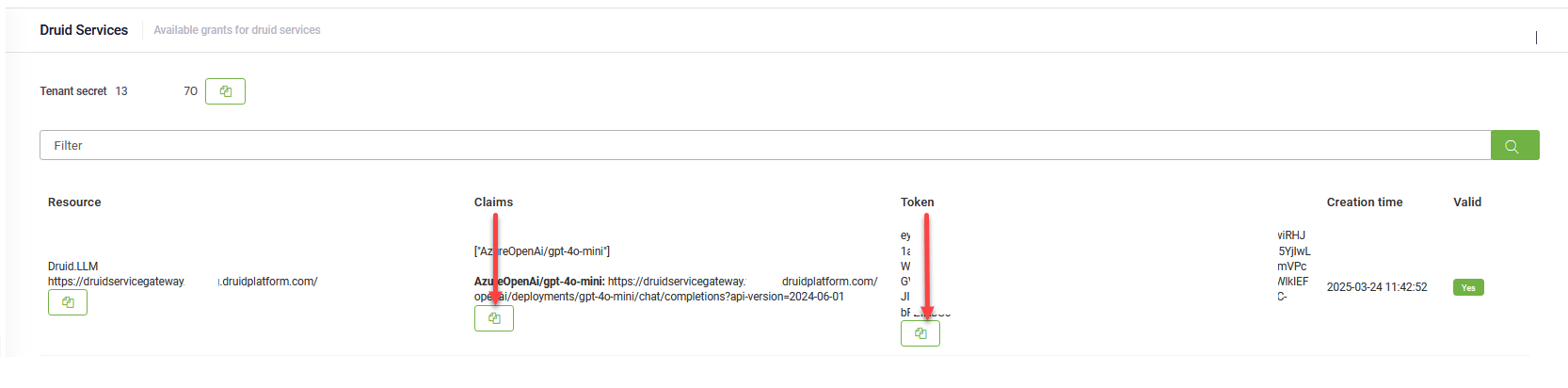
Configure this app using one of the following options:
NOTE: If the DRUID.LLM resource does not appear, contact your sales representative to activate DRUID-dedicated resources for one of the following providers on your tenant: Azure OpenAI, Mistral, or Google.
|
Mandatory |
| DRUID-LLM-4o-mini |
Configure this app using one of the following options:
NOTE: If the DRUID.LLM resource does not appear, contact your sales representative to activate DRUID-dedicated resources for one of the following providers on your tenant: Azure OpenAI, Mistral, or Google.
|
Mandatory |
| Druid_Sendgrid | Used to send emails to users. Enter the SendGrid API key. | Mandatory for the Web and Email channels |
| Twilio | Used to send SMSes. In the variables table, enter Twilio values for: AccountId, SID, key and BotPhoneNumber. | Mandatory for the SMS channel |
After you configure the connections, click Publish.
Step 4. Import default settings
- Select the Admin workspace.
- Click Campaign Settings on the workspace menu.
- Click the Import Settings button.
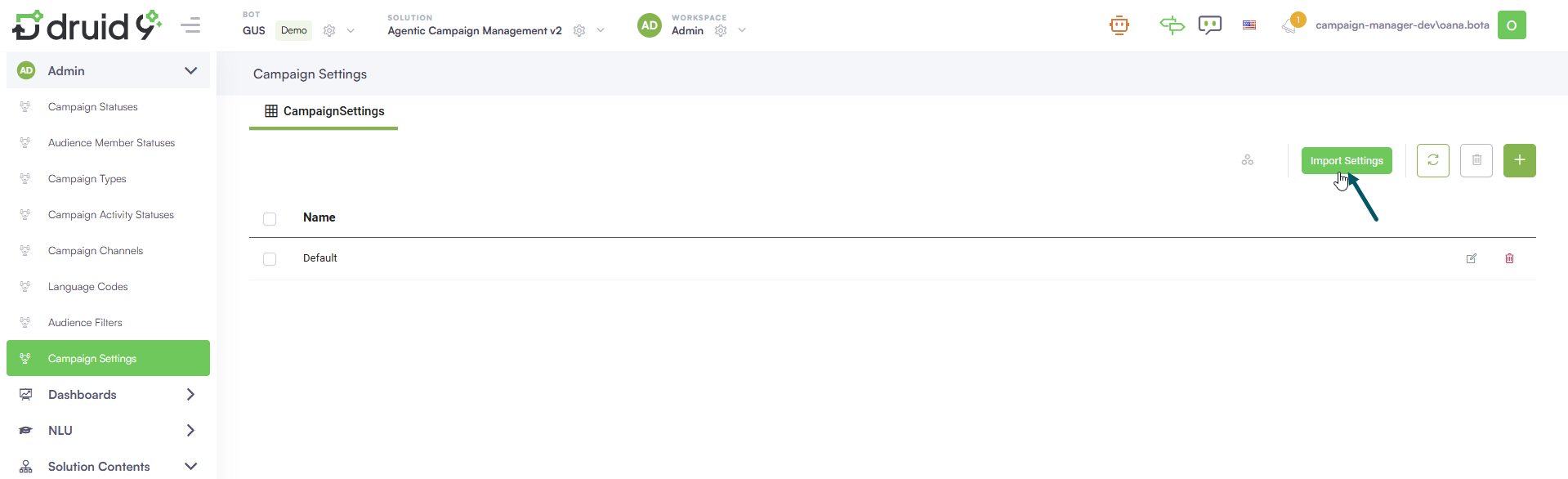
This automation provisions the default app settings.
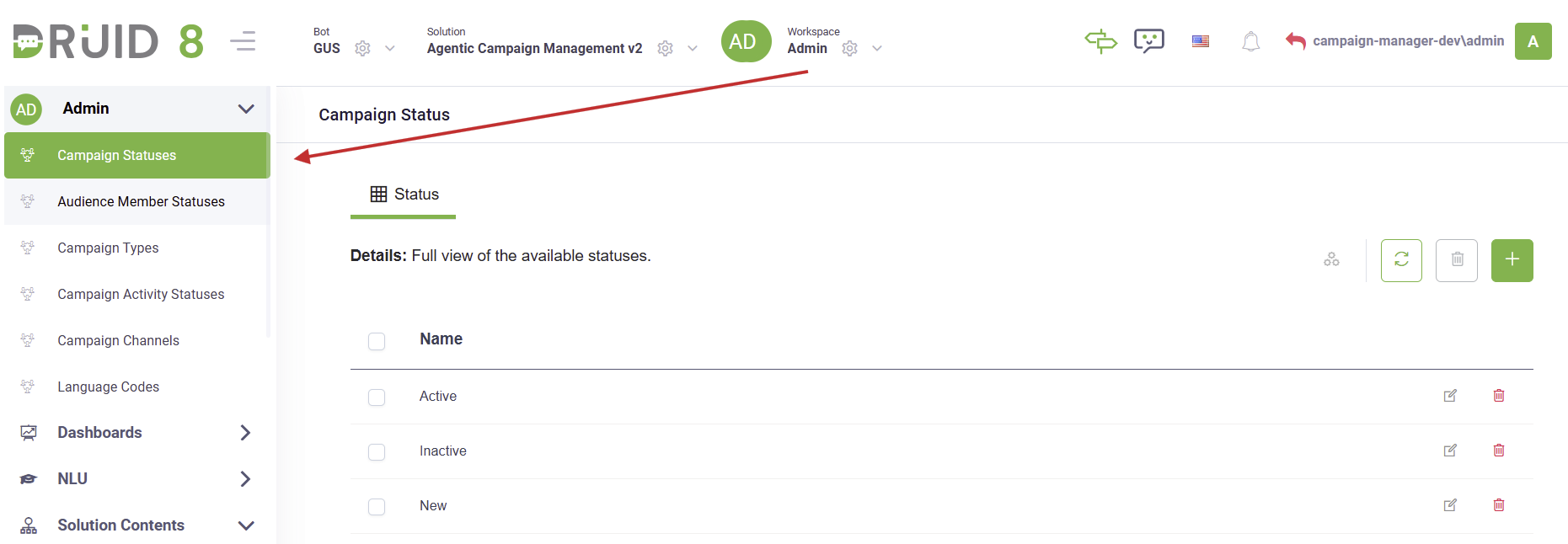
Step 5. Verify Demo Data
Select the Admin workspace and review all demo data, including initial GPT prompts.
Step 6. Configure Audience Filters
Audience Filters enable the dynamic creation of audiences during campaign setup. These filters map directly to fields that exist on the [[Contact]] entity. The system uses these mappings to build dynamic queries such as “GPA should be over 3.5” or “Enrollment city should be Bucharest” during conversational audience creation.
Prerequisites
- Before you can create the Audience Filter, the field you want to filter contacts by must exist on the [[Contact]] entity. If the field does not yet exist on the Contact entity, you must create it first.
- Select your solution, then go to Solution Contents > Entities.
- Search for the Contact entity and click on it.
- Click on the Fields tab.
- Create the new field with the required schema name.
- Save and publish your changes.
To create the [[Contact]] field that your Audience Filter will reference, follow these steps:

Create Audience Filter
To create an audience filter, follow these steps:
- Go to the Admin workspace, and from the left menu, select AudienceFilter.
- Click the New AudienceFilter icon at the top-right corner of the page. The audience filter configuration pane appears.
- Enter the audience filter details:
- Name - Enter the unique internal name for this filter record. This value must exactly match the schema name of the existing field on the Contact entity that the filter is based on.
- Display Name - The user-friendly name of the filter.
- Description - A short, clear summary of the filter's purpose and criteria. This helps you easily identify the specific function or rules of the filter at a glance in the main AudienceFilter view.
- Save the filter.


NOTE: The match is case-sensitive and must include the same capitalization, spacing, and underscores. If the names don’t match, the Audience Filter integration will fail because the dynamic audience generator won’t be able to correctly query and filter Contact records.

Once configured, these Audience Filters provide users with the ability to dynamically build custom audiences during conversational creation (e.g., combining criteria like "GPA > 3.5" and "Enrollment City = Bucharest").
The filters appear as available options, allowing a seamless transition into the content generation step handled by the next agent. If no custom filters exist, users are limited to selecting only predefined Audiences.
You can now build your first campaign.
Building your first campaign
While the procedure below details how to manually build a campaign, you can now also initiate creation through a powerful conversational flow by speaking directly to the agent. The agent will guide you through the entire process:
- Setting the campaign details.
- Dynamically building the audience (using the Audience Filters you have configured).
- Crafting the message content (including formatting, images, and buttons) before launch.
To build your first campaign, select the Campaign & Contacts workspace and follow these steps:
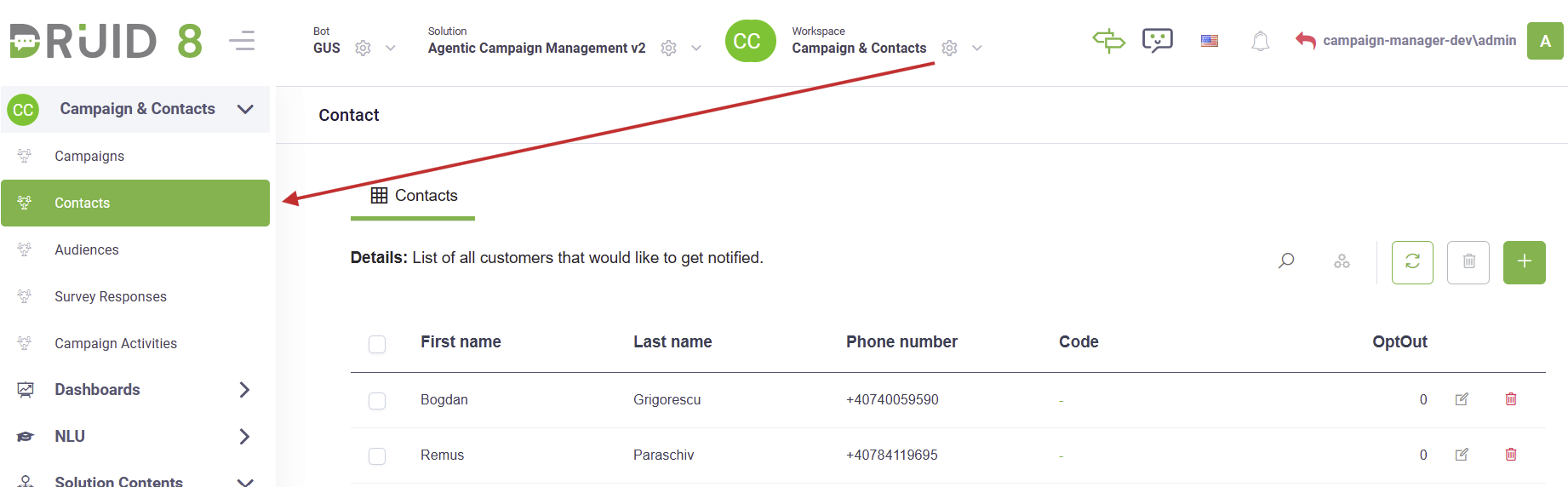
Step 1. Add Contacts
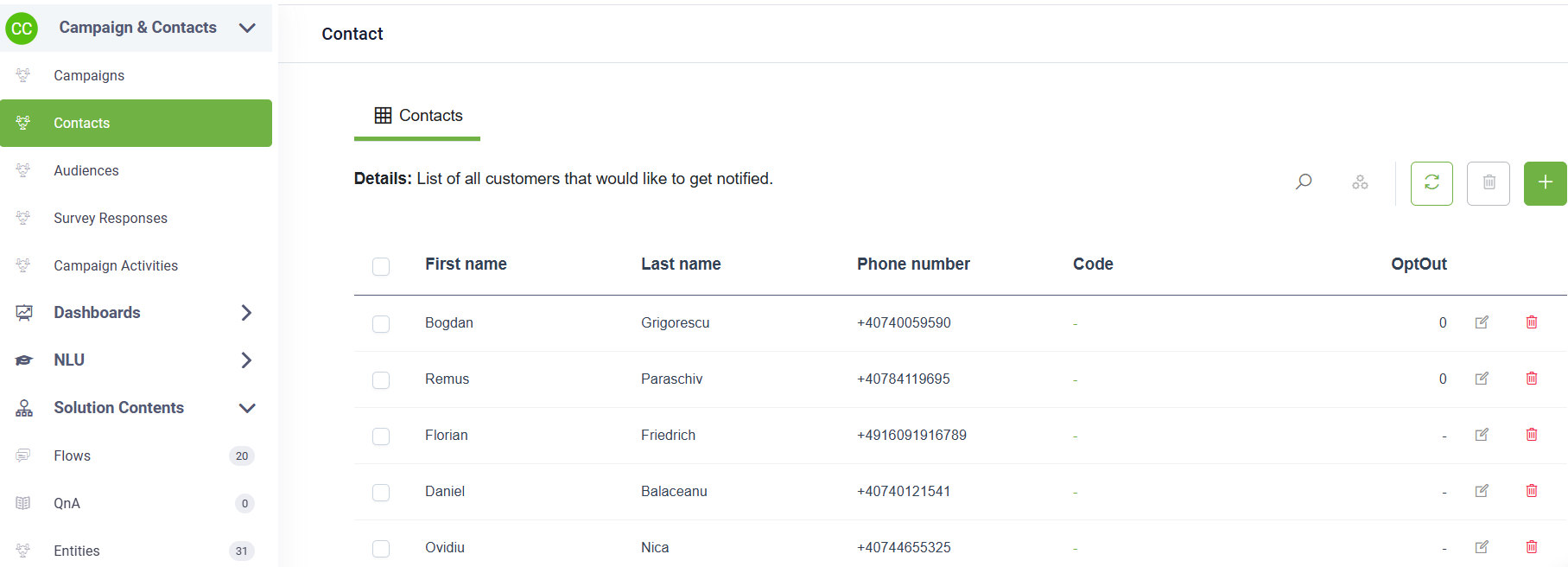
Click on Contacts on the workspace menu, and add your target contacts.
Step 2. Create campaign audience
To build a list of contacts that will be targeted by the campaign, follow these steps:
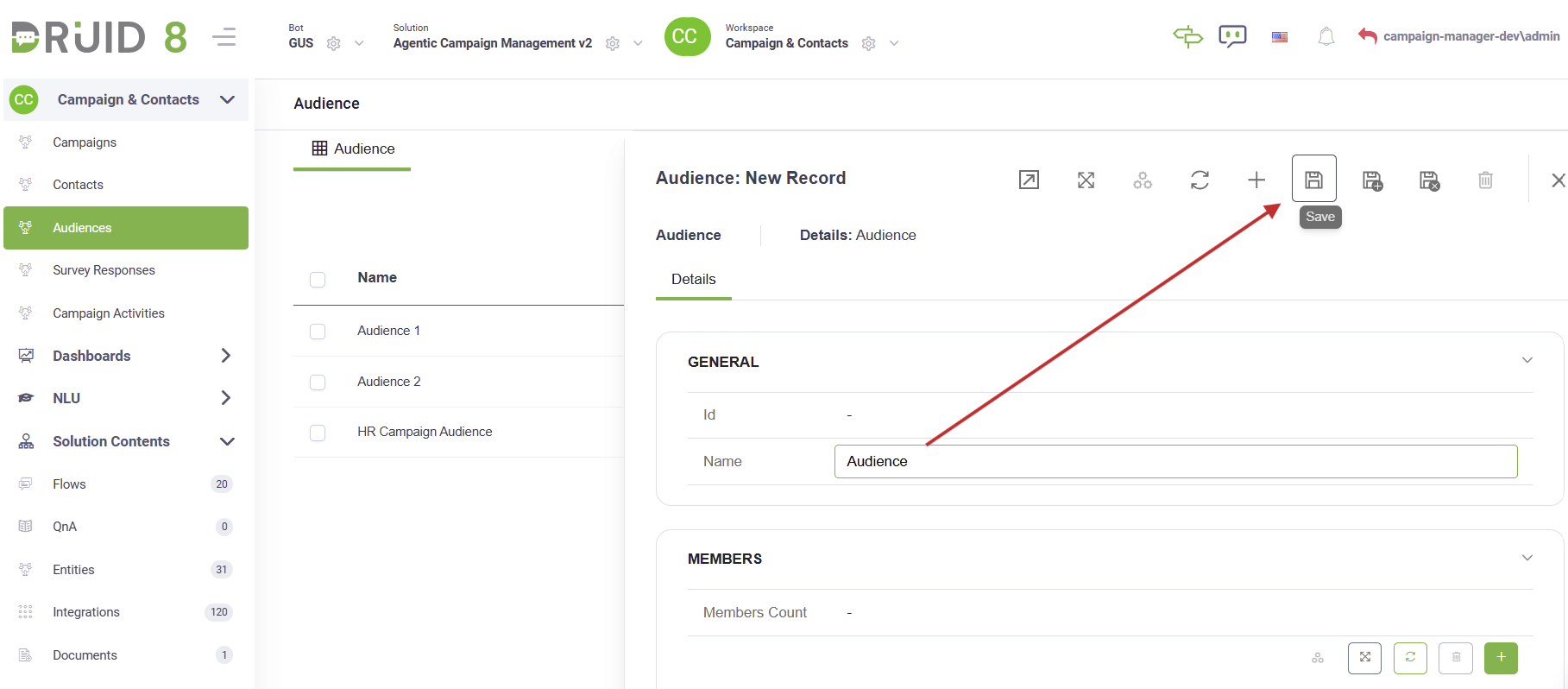
- On the workspace menu, click Audiences.
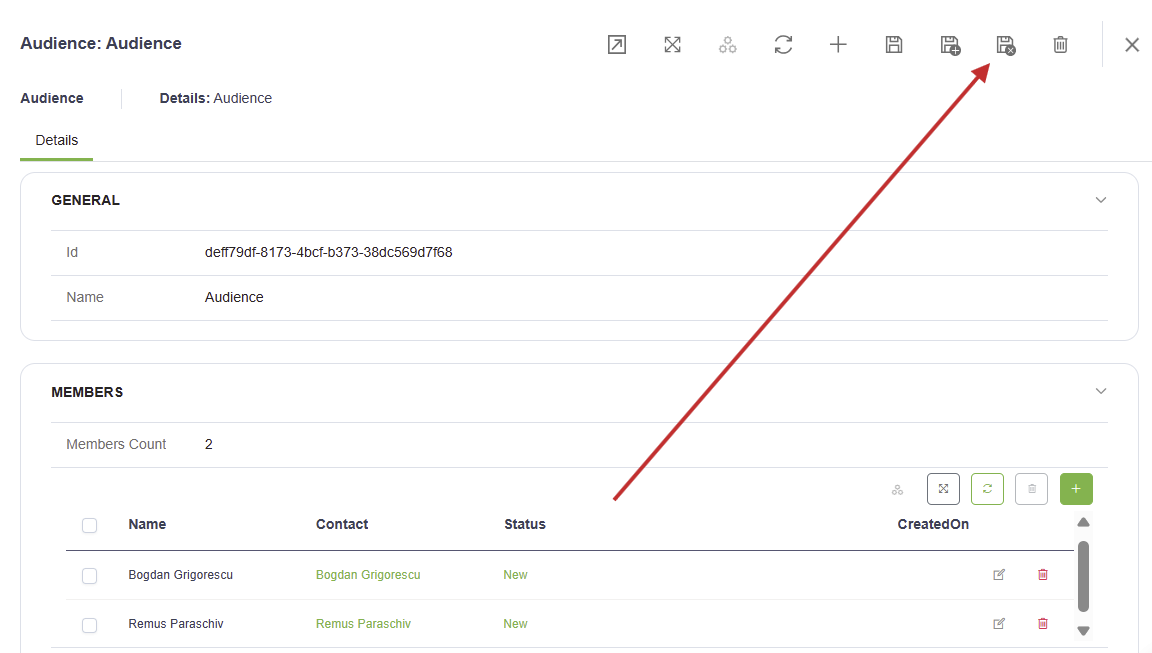
- In the Audience page, click the New Record icon in the top-right corner. This opens the Audience creation page.
- Enter the campaign audience Name and click the Save icon to save the new campaign audience.
- In the Members section, add the contacts who will be targeted by the campaign. To add a contact:
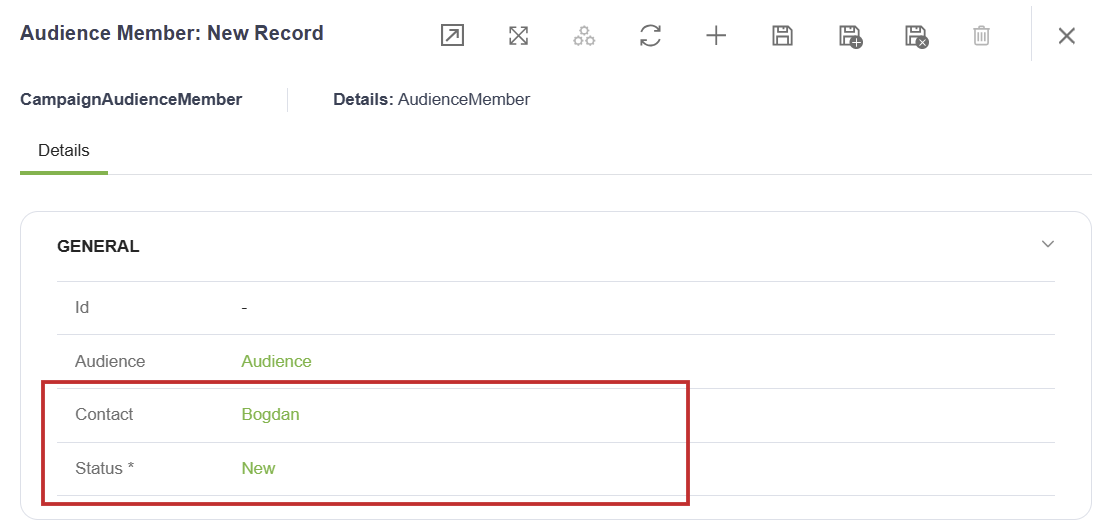
- Click the Add icon at the top-right corner of the Members table. The Campaign Audience Member page appears.
- From the Contact field, select the desired lead.
- From the Status field, select New.
- Click Save & new if you want to add another lead or Save & close otherwise.
- After you finish adding the desired leads to the campaign audience, click Save & close to save the campaign audience and exit the configuration page.
Step 3. Define the Campaign
To define a campaign, follow these steps:
- On the workspace menu, click Campaigns & Contacts.
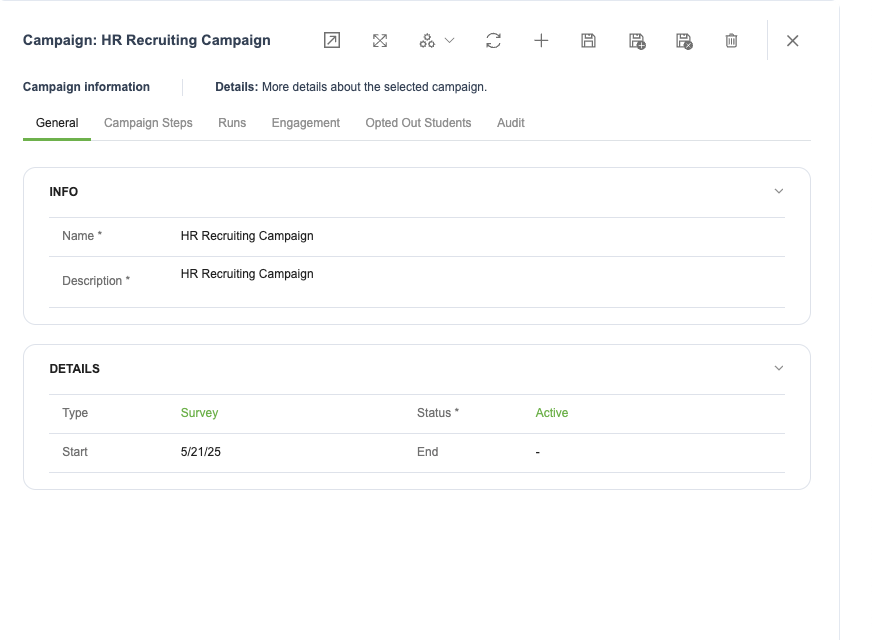
- Click the New Record icon in the top-right corner. This opens the Campaign creation page on the General tab.
- Add the campaign details (Name and Description) and select the campaign Status and the Campaign Type (Notification, Survey, or Marketing).
- Optionally, select the Start and End date.
- Save the campaign general details.
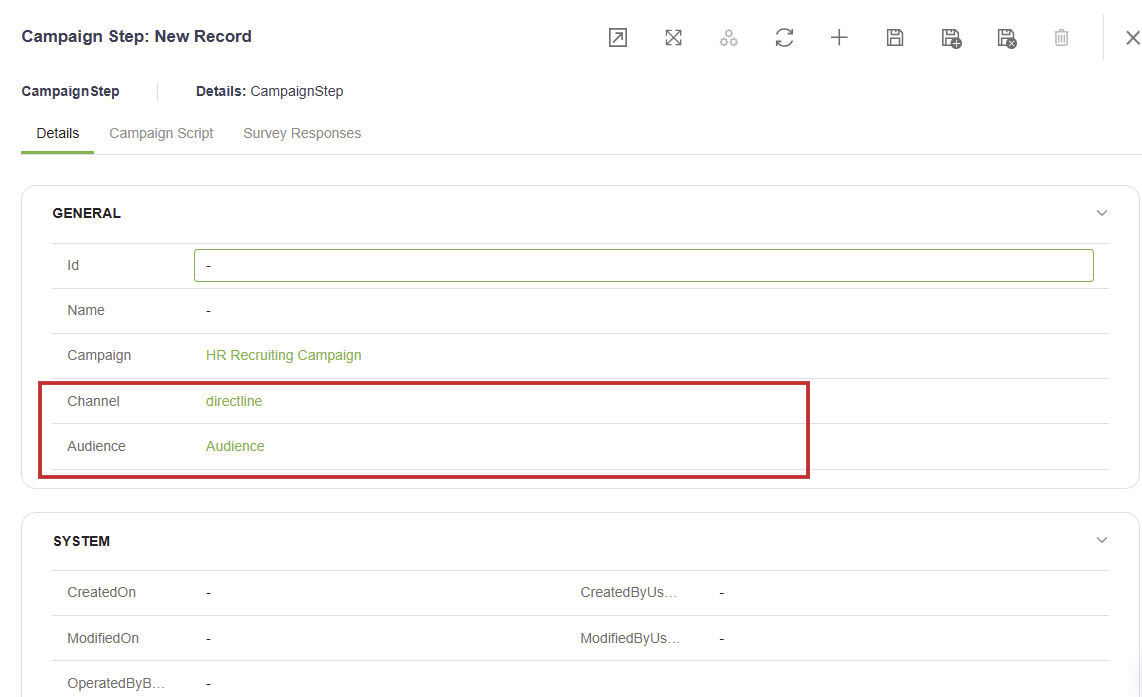
- Click on the Campaign Steps tab, and add one or two steps for all the Channels that the Campaign is targeting. To add a campaign step, follow these steps:
- Click the Add icon. The CampaignStep configuration page appears.
- Specify the desired Channel (Directline, SMS, or Audiocodes).
- Select the target Audience created earlier.
- Click the Save icon.
- Click the Campaign Script tab and write the Intro message and the Script as a story.
- #botUrl – link to the web page that hosts the Druid public virtual assistant that runs the campaign.
- #optoutUrl - link to the web page that hosts the Druid public virtual assistant that runs the campaign and contains the parameters for triggering the Contact Opt Out conversation.
- Click the Save& close icon.
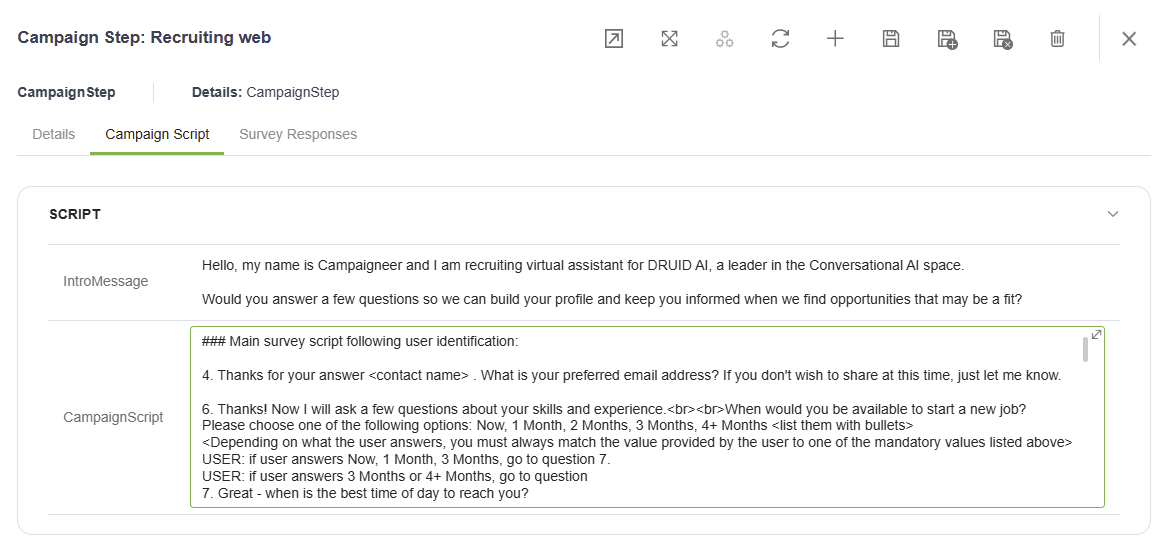
For the SMS channel, the Intro Message is the one delivered through SMS to each member of the campaign audience.
For the directline / web channel, the Intro Message is delivered by email to the campaign audience members. In the example below please note the 2 url variables included in the message:
“Hello, my name is Campaigneer and I am recruiting virtual assistant for DRUID AI, a leader in the Conversational AI space.
Would you answer a few questions so we can build your profile and keep you informed when we find opportunities that may be a fit?
To complete your survey, please access our assistant here: #botUrl
If you wish to opt out of these reminders, click here: #optoutUrl”
These 2 variables are replaced when the campaign activities are generated with the following values:
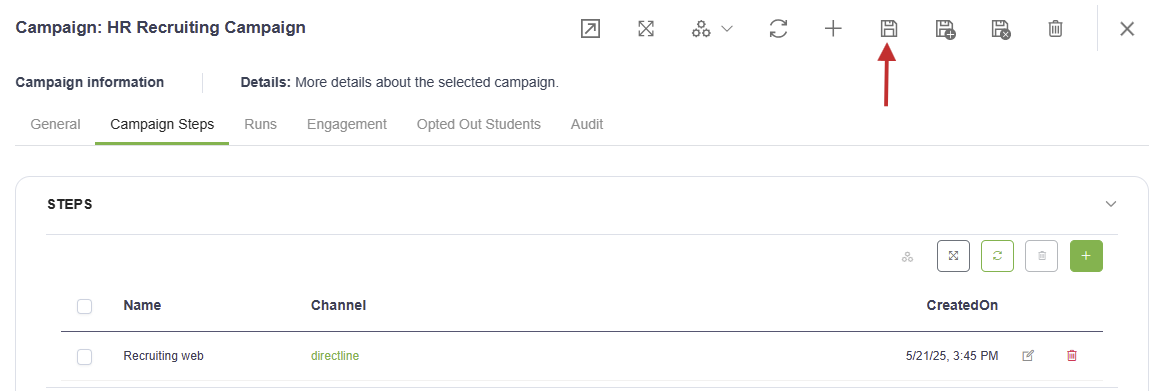
You can now launch the campaign.
Step 4. Generate campaign activities
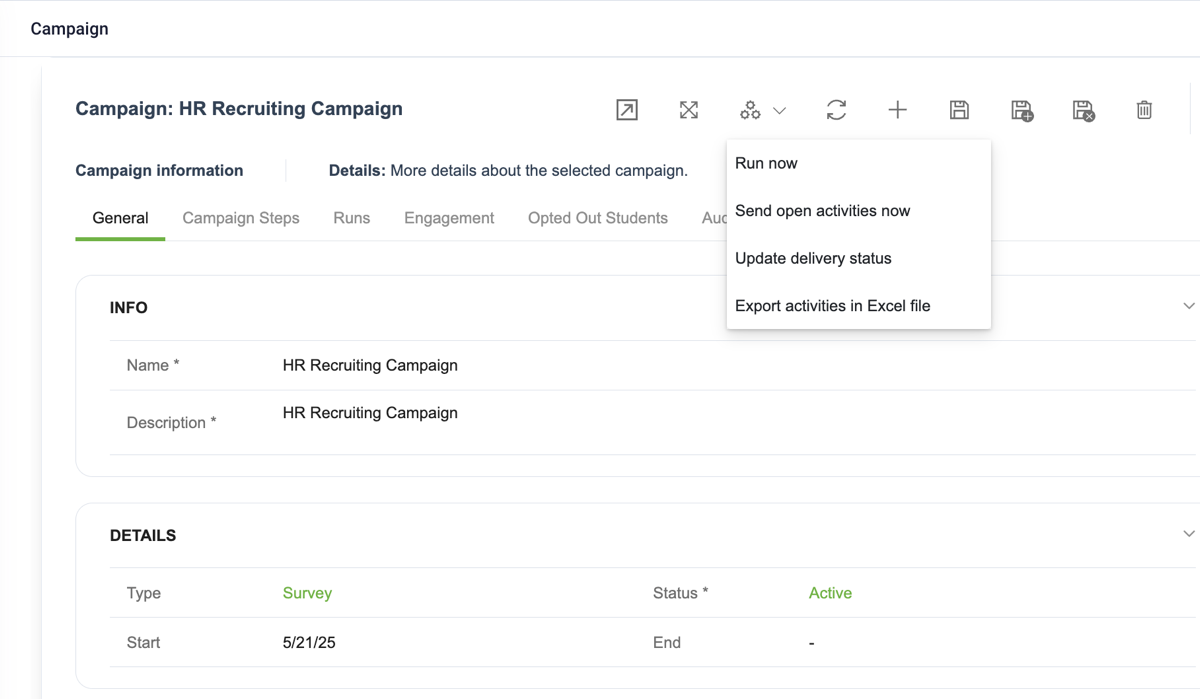
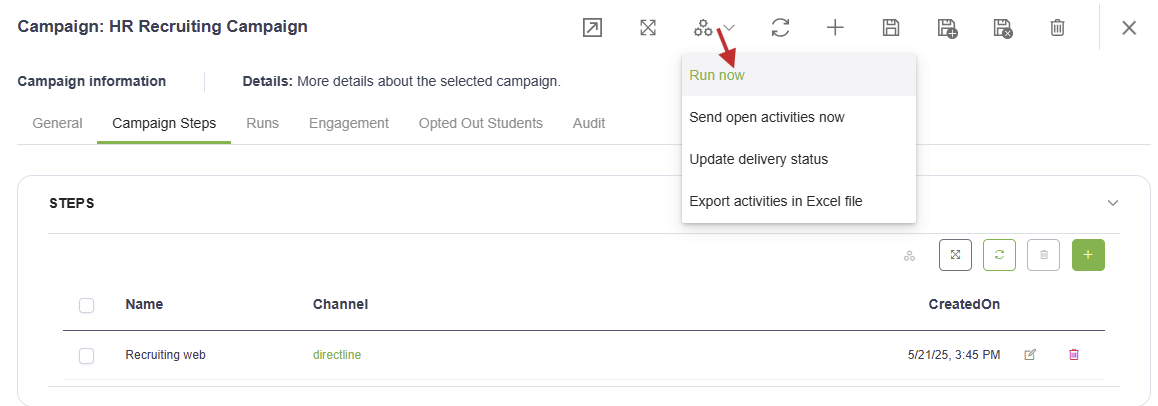
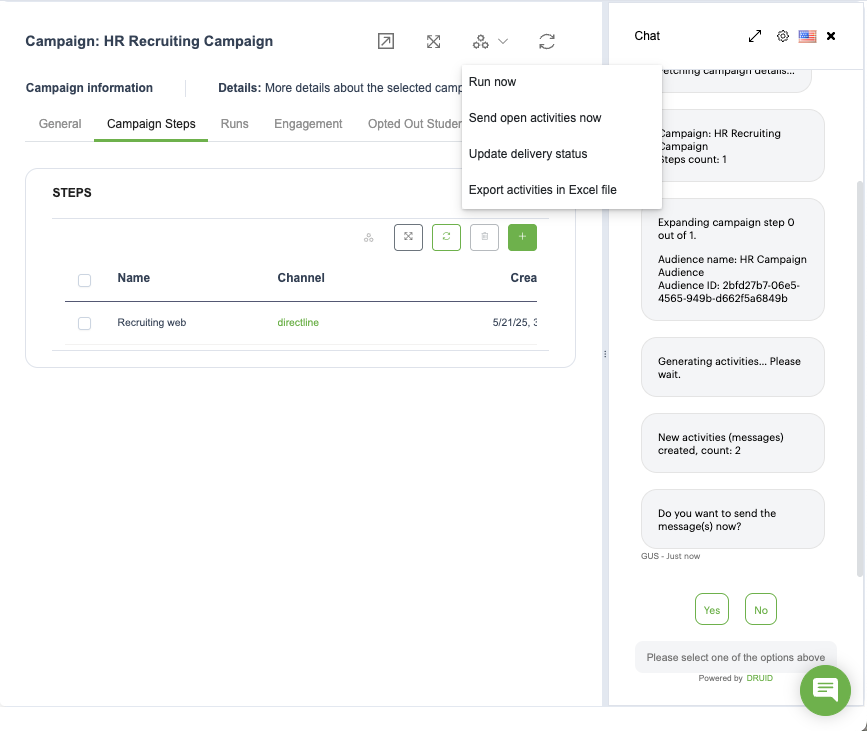
To launch the campaign, from the Automations dropdown, select Run Campaign.
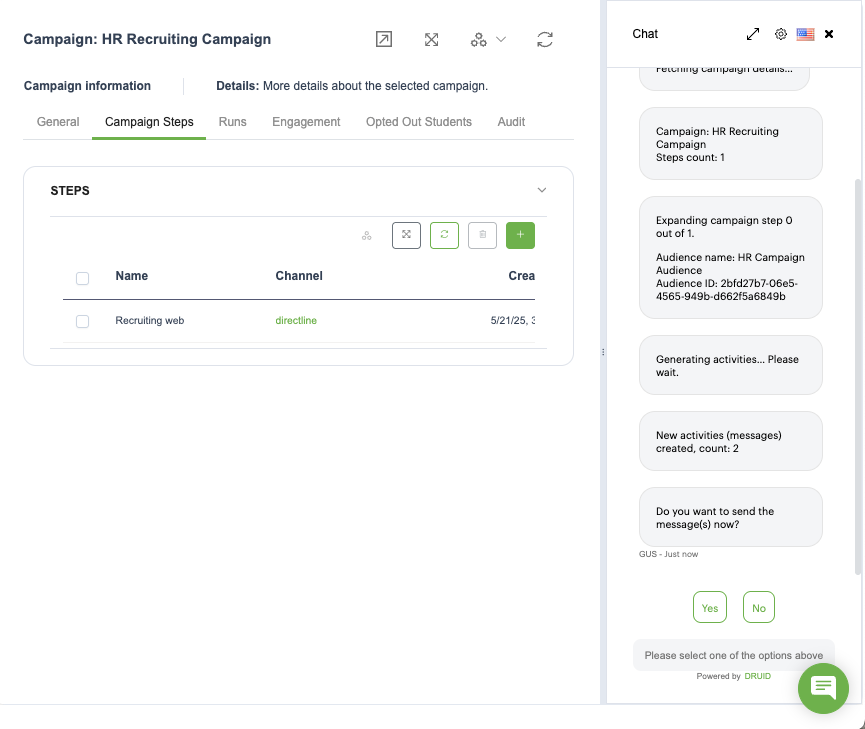
A chat window appears on the right-hand side of the screen, providing updates on the campaign launch.
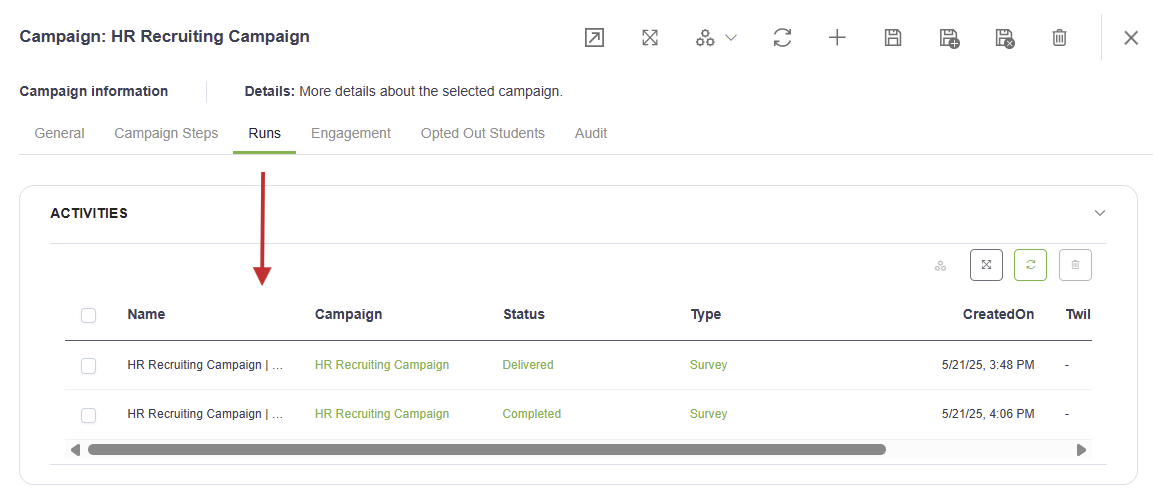
Close the chat window. Click on the Campaign Activities tab if you want to review the list of activities per lead.
To send the newly created campaign activities by either SMS or email, from the Automations dropdown, select Send open activities now.
For the SMS channel, you can retrieve the delivery status of each SMS message by triggering the automation Update delivery status.
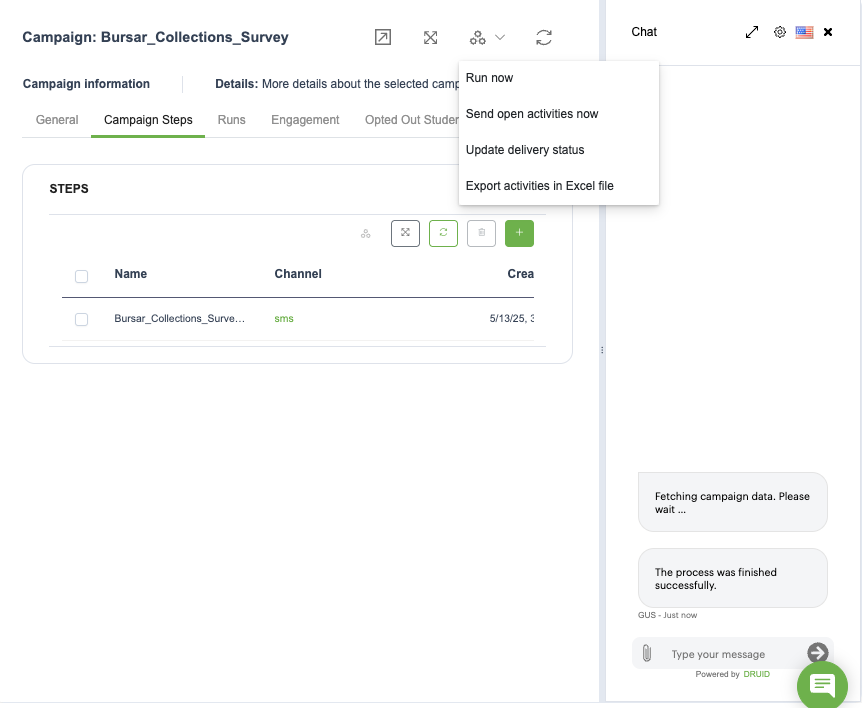
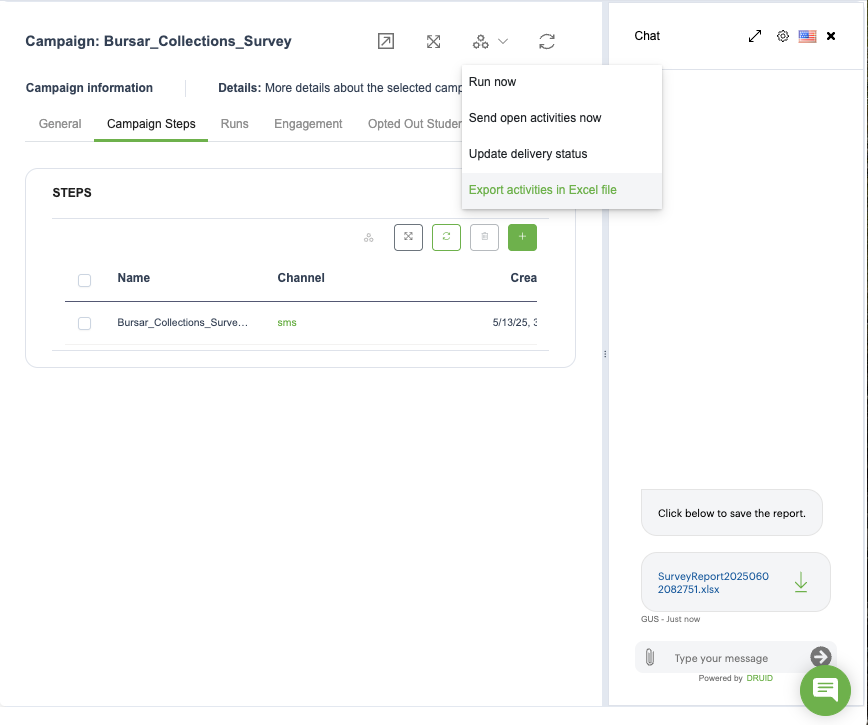
Finally, you can export the details of each Campaign in an Excel report by triggering the automation Export activities in Excel file.